Google Docs is good for more than just meeting notes or technical writing. If you’re looking for a free and easy way to make customizable estimates, Google Docs is a solid option available to anyone with a Google account.
You can create an estimate in Google Docs by starting with a blank document, adding your business and customer info, listing the products or services, and entering the estimated costs. Once you've finished the estimate, you can download it as a PDF and send it to your customer.
Estimates are a business’s way of showing a client their best guess of how much a good or service will cost before work begins. This is part of the negotiation stage between the client and vendor, and allows the client to ask questions and evaluate their budget based off of the information that the vendor provides.
Estimates will set the tone of your negotiation with your client, and there are a number of things to keep in mind when putting together your estimate.
Before creating the estimate, make sure you understand the service scope, expected labor, required materials or products, and any other costs involved.
If important details are still missing, confirm them with the customer before preparing the final estimate.
Your estimate should give them enough information to understand what they're paying for without making the document unnecessarily complicated.
Before we begin, make sure you have access to the following:
Step 1: Open Google Docs
Open Google Docs and create a new blank document.
Step 2: Add Your Business Information
At the top of the document, add your business name, address, phone number, email address, and any other relevant contact information
Step 3: Fill out the relevant information
And voilà! Your estimate should now look something like this:
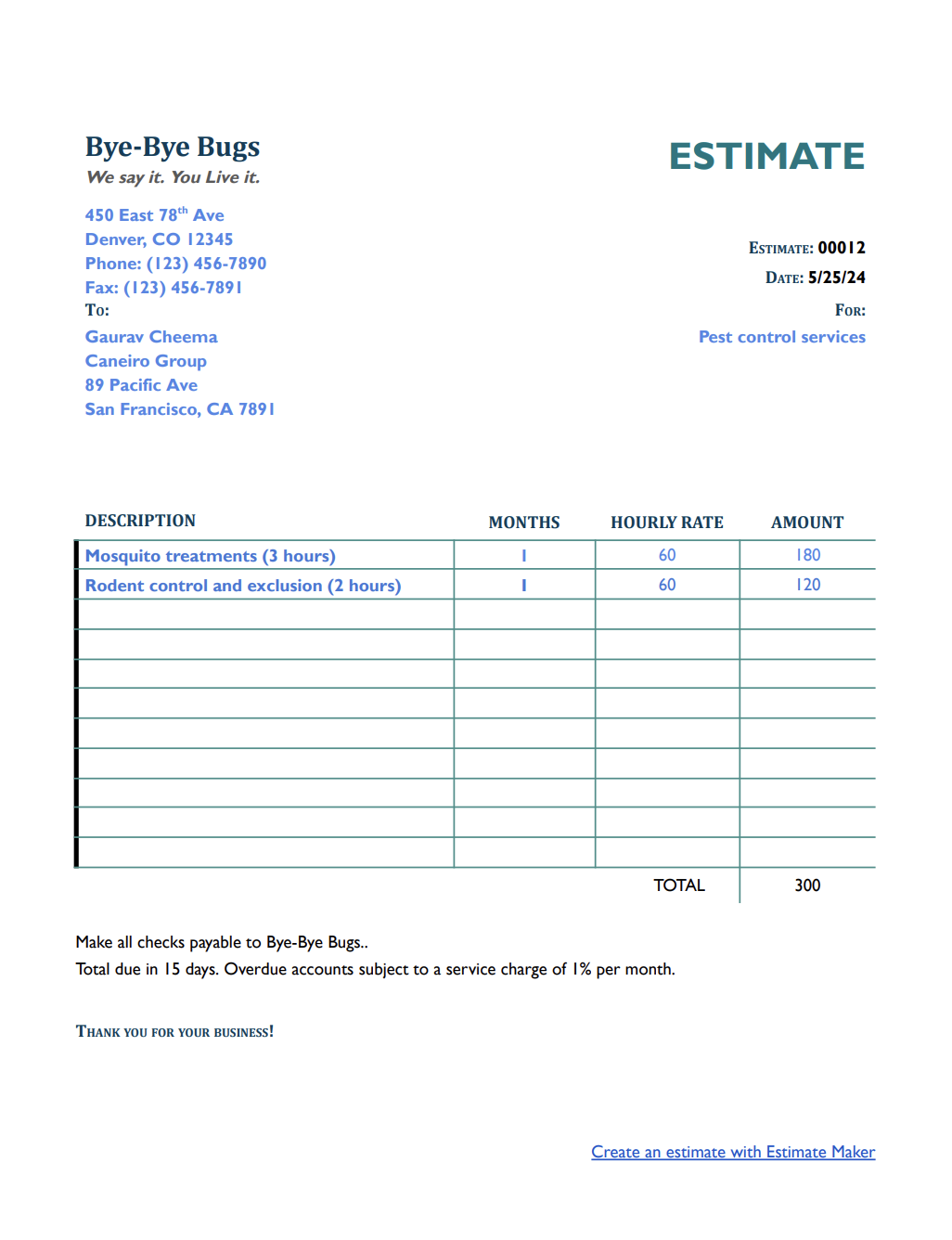
The Google Docs estimate above was created using one of our free estimate templates. Creating an estimate from scratch in Google Docs can take time, which is why we’ve put together a collection of estimate templates for more than 40 industries. Feel free to browse the collection and choose the one that best fits your needs.
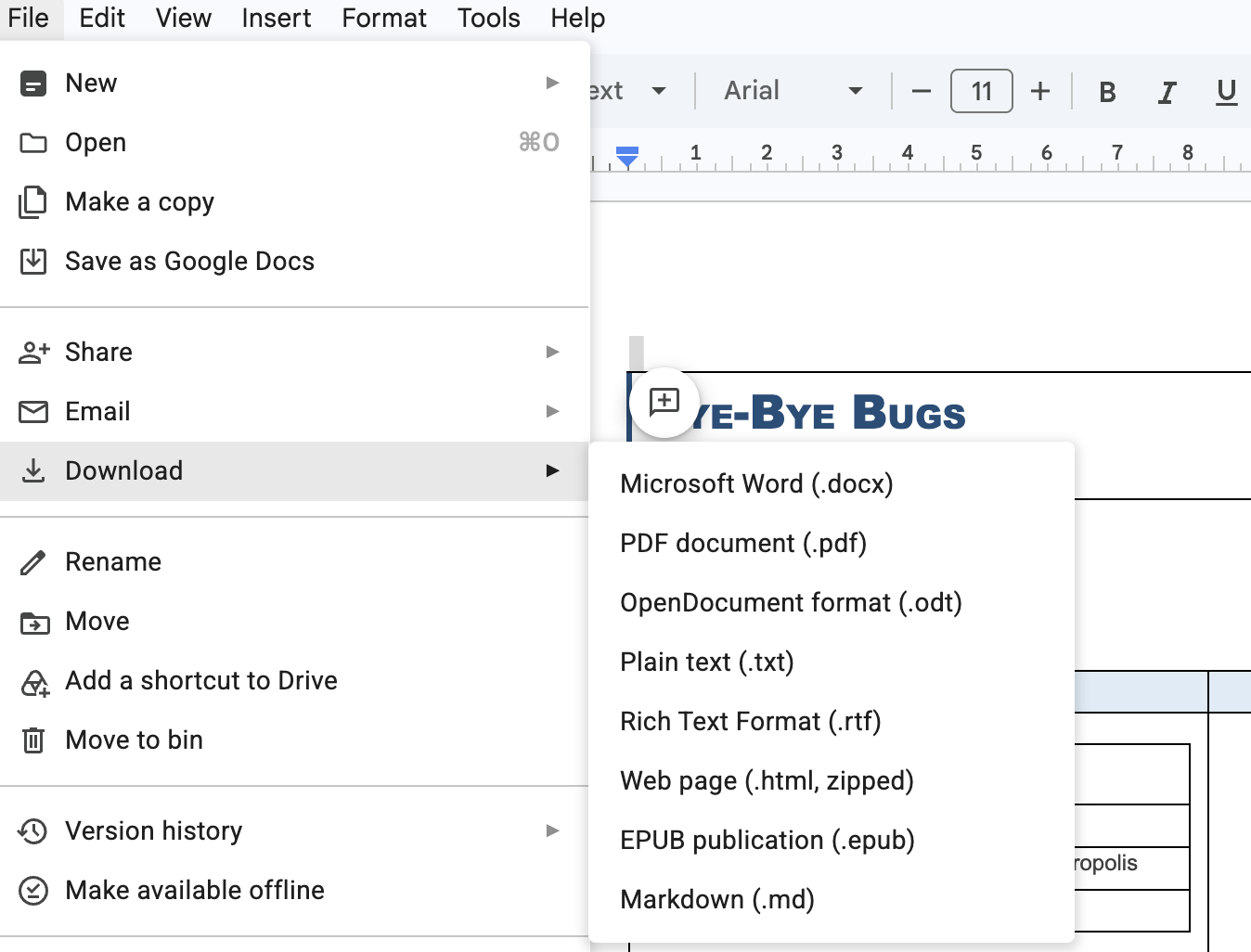
Step 5: Download
All that’s left is to download it! When it comes to file types, PDFs are standard for estimates.
Here are some extra steps to personalize your estimate and make it look more professional.
If your Google Docs estimate has space for a logo, or if you want to add one, follow the steps below:
Step 1: Insert > Image > Image location

Step 2: Resize and place in the top right corner. It’s a good idea to have your logo on each page.
To prevent your logo from interfering with the text and reformatting your estimate, be sure to have the image either “in front” or “behind” the text.

If you’re interested in having a standard, personalized copy, it’s a good idea to save a standard version to save yourself time in the future.
Step 1: File > Make a copy

Step 2: Rename it, so it’s easily identifiable as a template
Step 3: Select the file location
Step 4: For future estimates, make copies of this template
It’s a good idea to give each estimate its own number, so that both you and the client can refer to them easily later. Like invoice numbers, estimate numbers are an easy shorthand to assign to estimates, and are especially handy when you’re offering discussing multiple estimates and possibilities.
Always make sure this is up-to-date before you send it! If you work on an estimate over several days, make sure your prepared date accurately reflects the date you send it to your client.
Expiration dates on estimates are standard. These help to encourage a client to make a decision, and prevents wasting time. It also ensures that they're aren’t held as binding, in case of any price changes in the future. The standard date for estimate expirations are 30 days after they’re issued.
You should also clearly but succinctly define any terms and conditions. These can include: how you accept payment; whether payment is expected before or after the service or goods are delivered; and what happens if payment is not sent on time, such as late charges or interest.
Add the date when the estimate expires, which means the quoted price is valid until that date.
Pretty straightforward, right? Thanks to Google Docs’ template, you can put together your own estimates.
However, if you’re looking for an even easier option to make estimates and invoice clients with more personalization options, you can make estimates with invoicer.ai, with extra services such as payment reminders and tracking, real-time updates, notifications, AI Assistant and more! Try it free for 14 days.