

Choose a template below and:
1. Select Make a Free Copy. Sign in to Google if asked.
2. Google Sheets saves your own copy to your Drive, ready to edit.
Replace the sample details with yours. Line totals, tax, and the estimate total calculate automatically.
Everyday Google Sheets estimate templates for quoting any job. Open a copy in your Drive and start editing right away.

A simple estimate for everyday jobs and projects. Add each item, quantity, and price, and the totals calculate automatically. There’s also space for tax and payment information.

An estimate with space for your customer details, payment terms, and pricing. Add the quantity and unit price for each item, and the sales tax and final total calculate automatically.

A more traditional estimate for businesses that want something a little more formal. It includes space for discounts, tax, payment information, and a signature once the estimate is accepted.
Skip the template. Create, send, and track estimates with Invoicer.
Create Your EstimateGoogle Sheets estimate templates for service work and projects, with labor, materials, discounts, and payment details.

A practical estimate for contractors and service businesses that need to explain the work in more detail. Add a description and price for each part of the job, along with the PO and estimate numbers, and the tax and total calculate automatically.
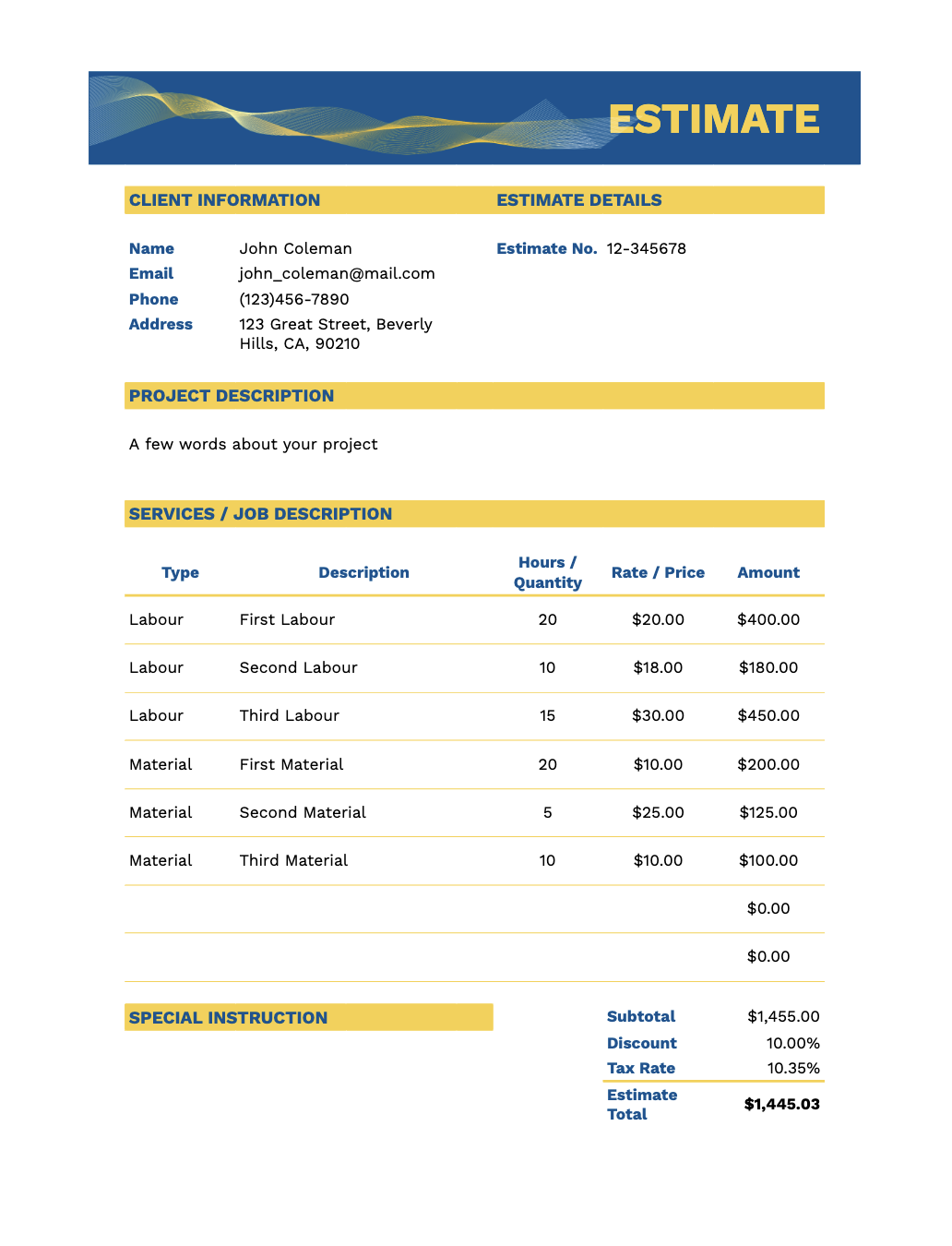
Use this template when a project includes labor and materials. List the hours or quantities, rates, and costs separately so your client can see how the estimate is calculated. There’s also space for discounts, tax, project details, and special instructions.

A general business estimate for quoting services or project work. Add your business and customer information, line items, discounts, tax, payment method, and any terms the client should know before accepting the estimate.
Skip the template. Create, send, and track estimates with Invoicer.
Create Your EstimateGoogle Sheets estimate templates built for specific trades. Enter quantities and rates, and the subtotal, tax, and total calculate automatically.
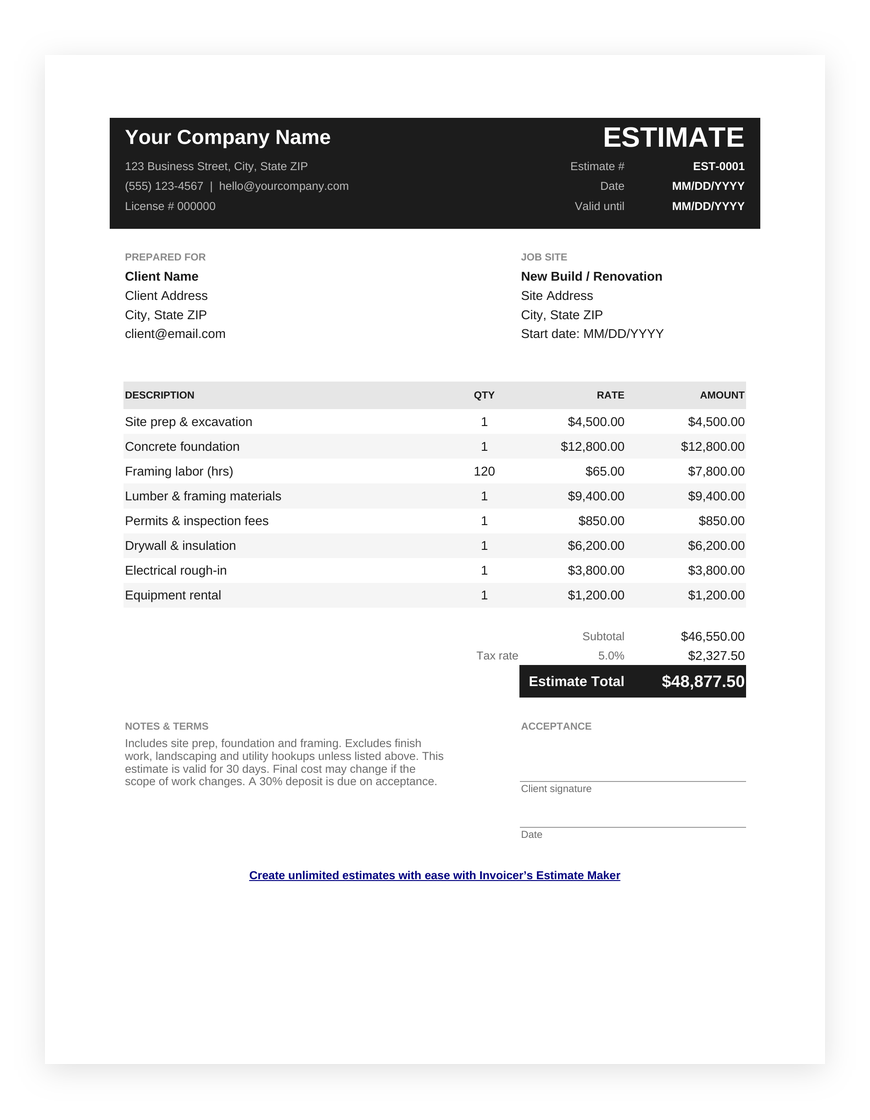
Made for construction projects where you need to list several parts of the job. List costs for work such as site preparation, foundation, framing, permits, labor, and materials, and the subtotal, tax, and total calculate automatically.
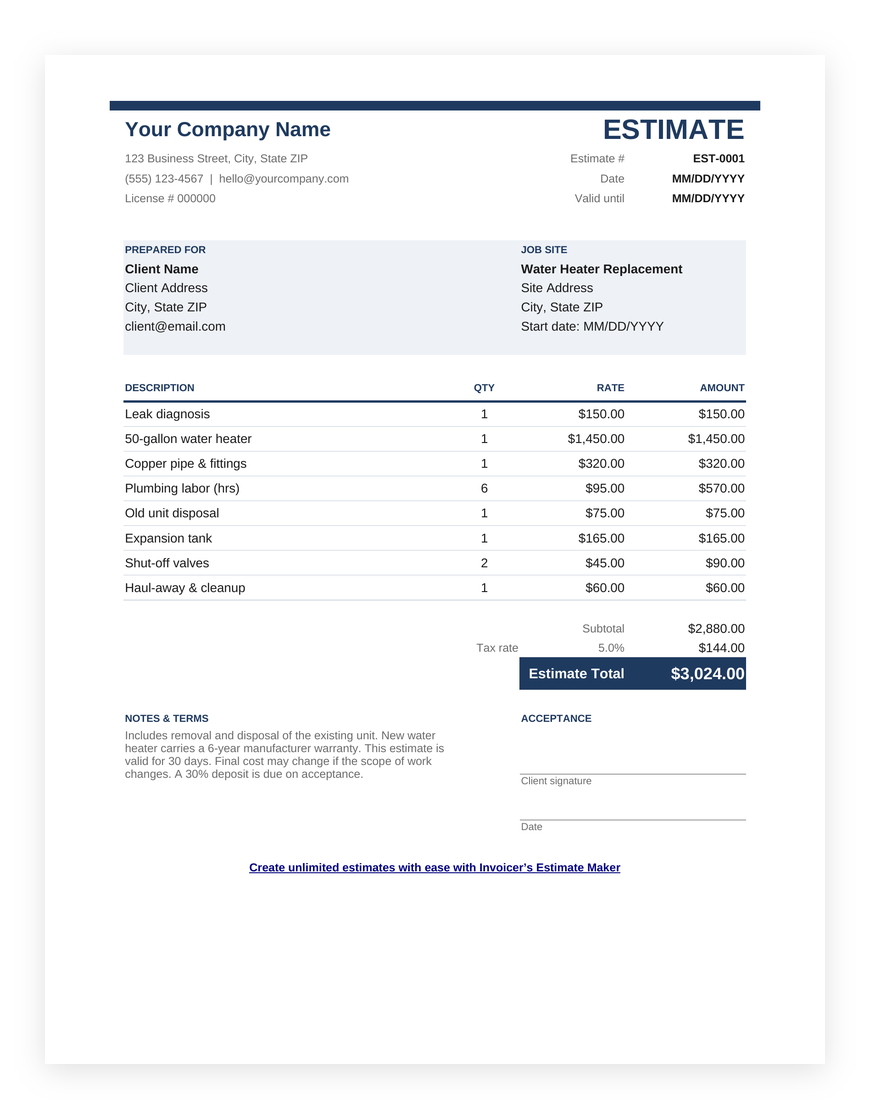
Made for plumbers quoting repairs, replacements, and installation work. Add the job site information, parts, and labor separately so the customer can see what’s included and how much the job is expected to cost.
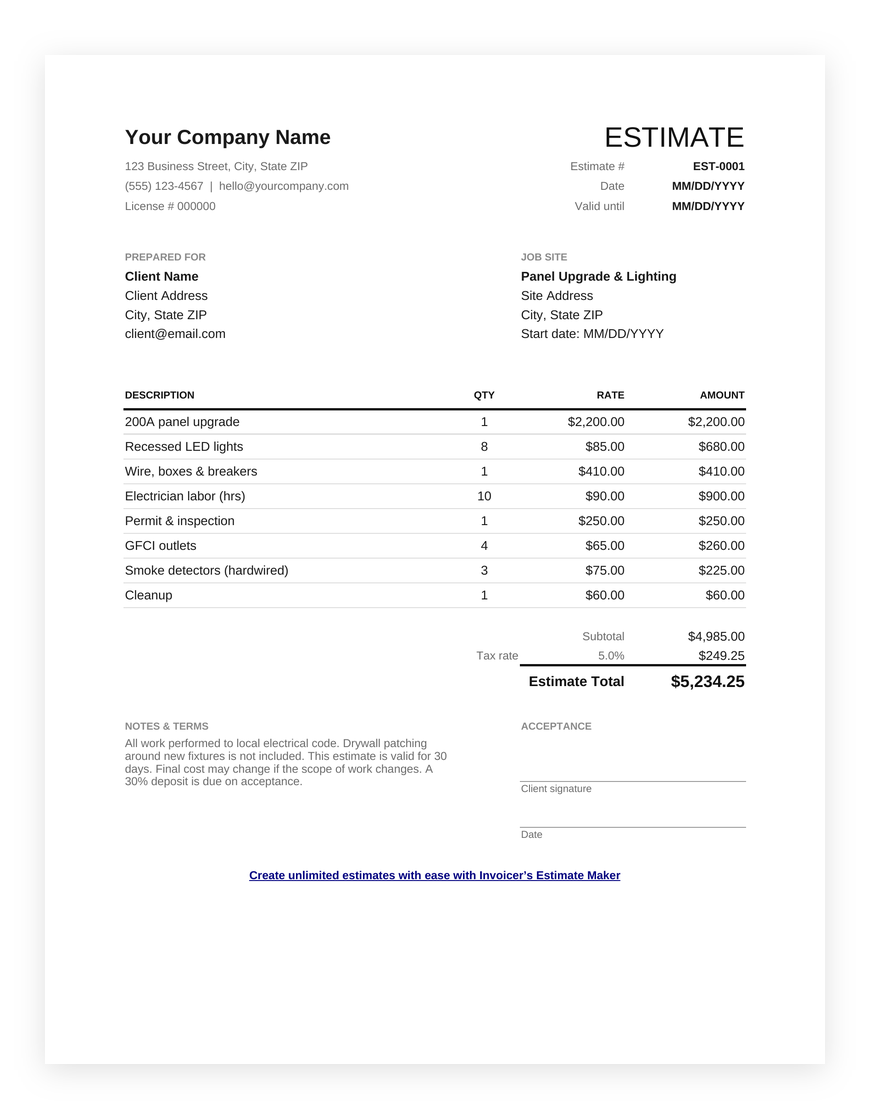
An estimate for electricians quoting wiring, lighting, panel upgrades, and other electrical work. List your labor and materials separately, add any notes about permits or project terms, and let the sheet calculate the totals for you.
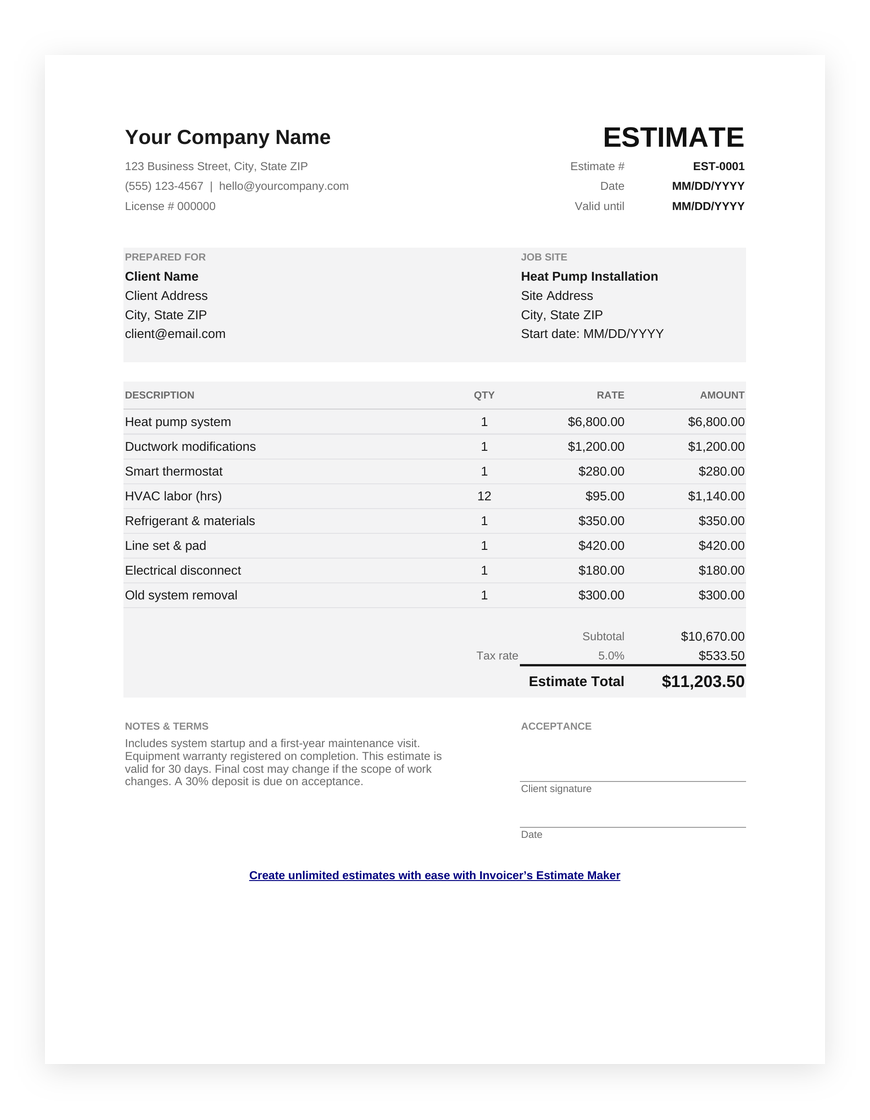
Use this template for furnace, heat pump, air conditioning, and other HVAC installations or repairs. Equipment and labor can be listed separately, with a signature line for the client to approve the estimate.
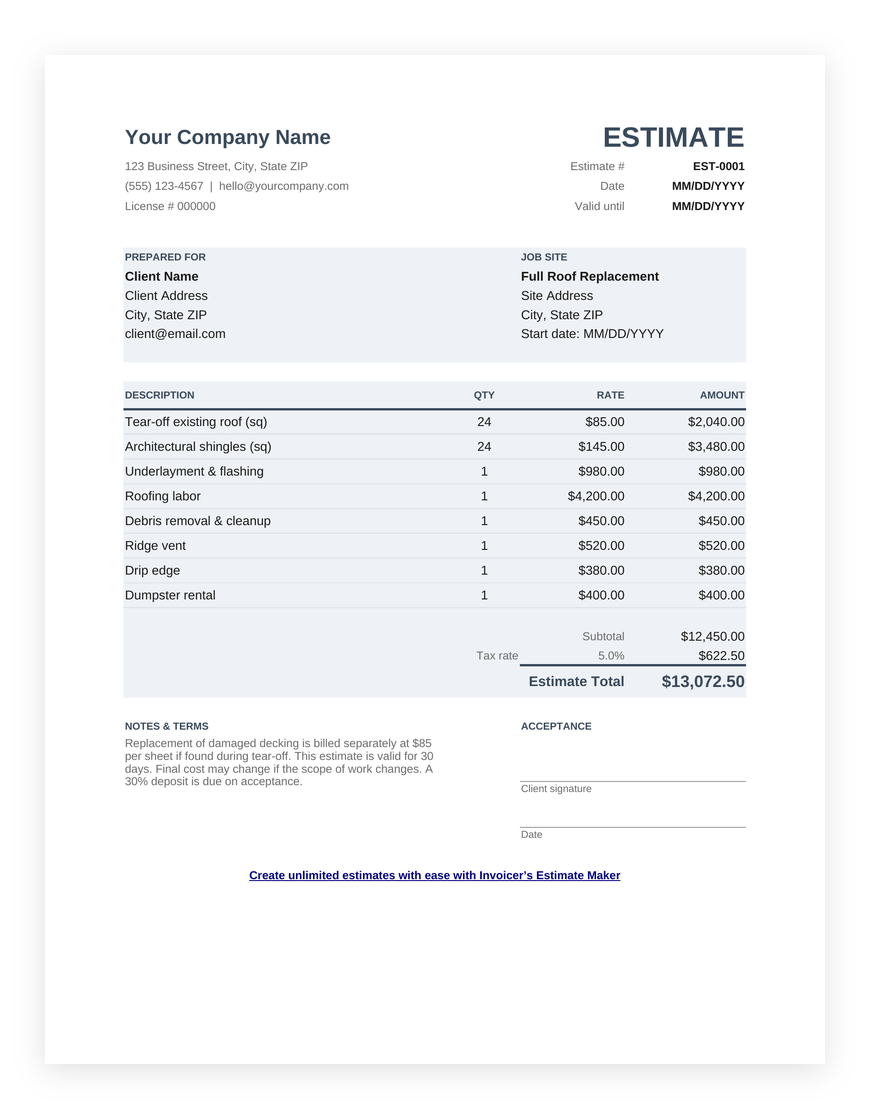
Made for roof replacements, repairs, and tear-offs. Add the size of the job and pricing by the square, along with notes about the scope of work, materials, and warranty.
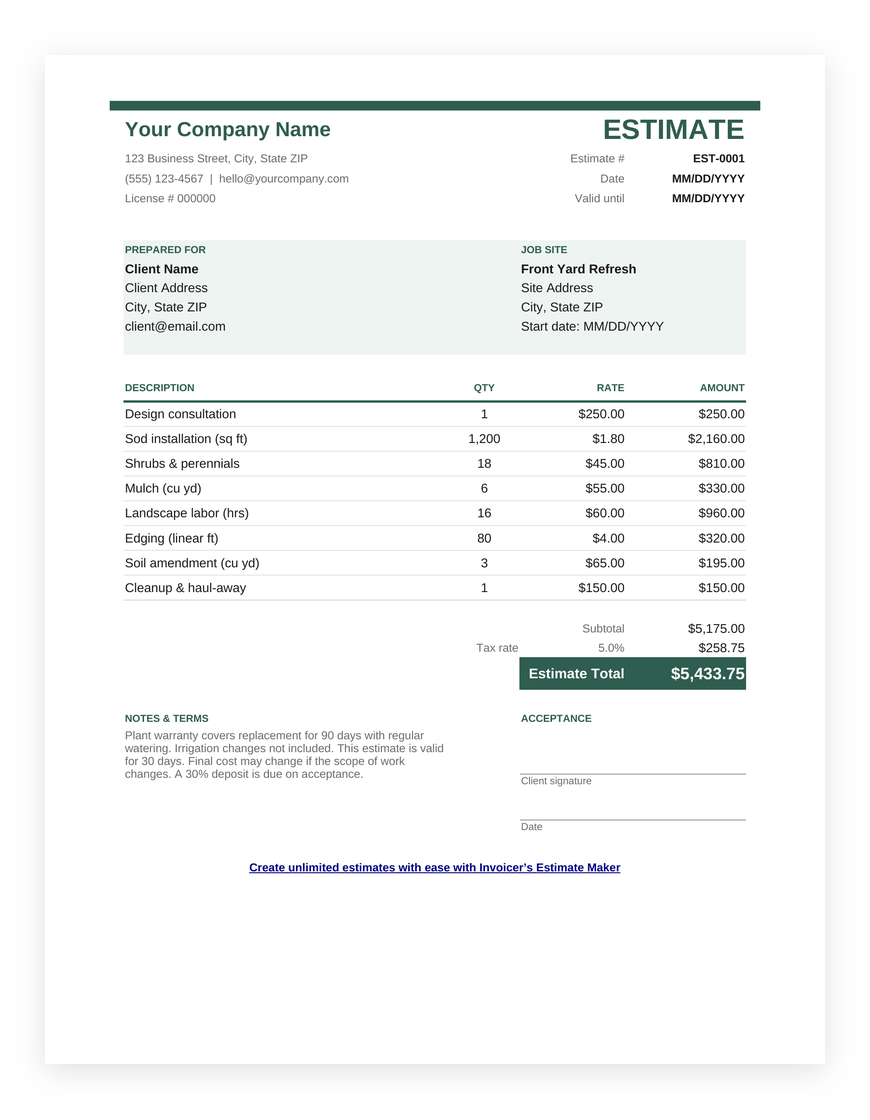
A practical estimate for landscaping, planting, sod installation, cleanup, and similar outdoor work. List plants and materials separately from hourly labor, and the totals calculate automatically.
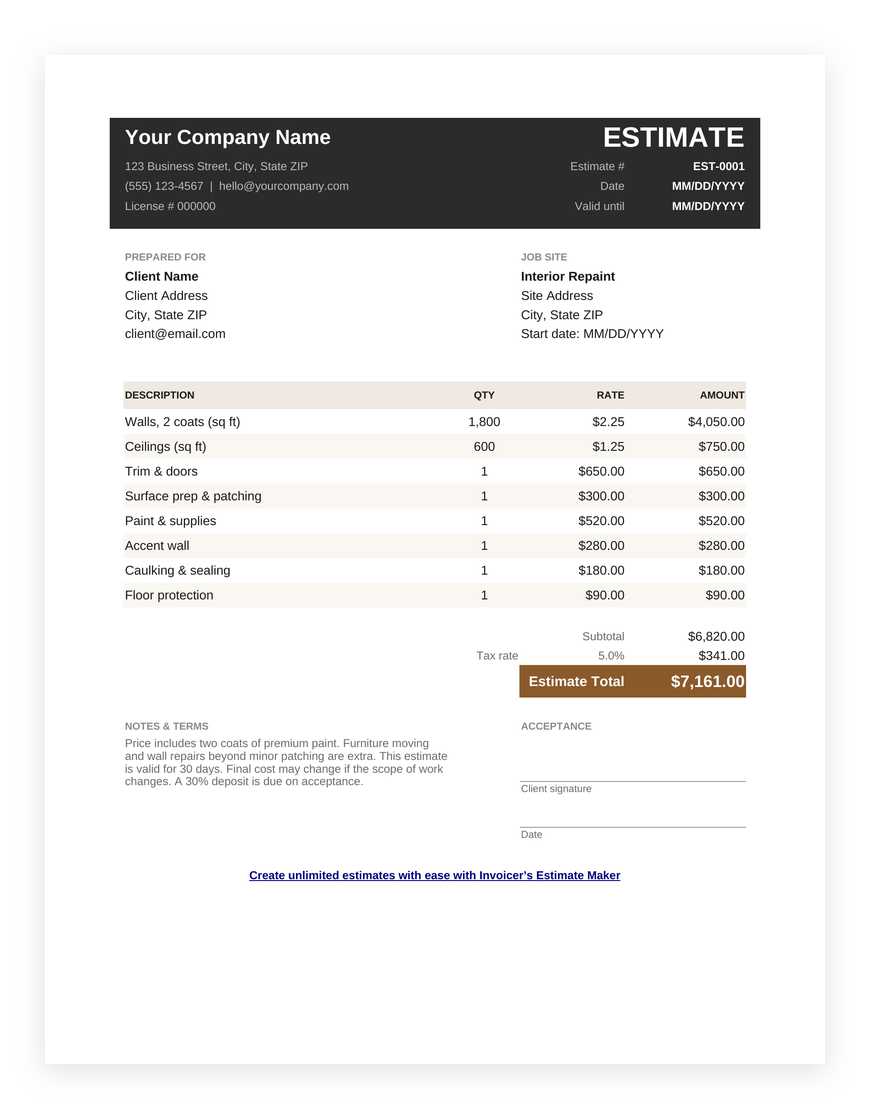
Use this template to quote painting jobs by square footage. Add walls, ceilings, trim, prep work, supplies, and other costs separately so the customer can see what’s included in the estimate.
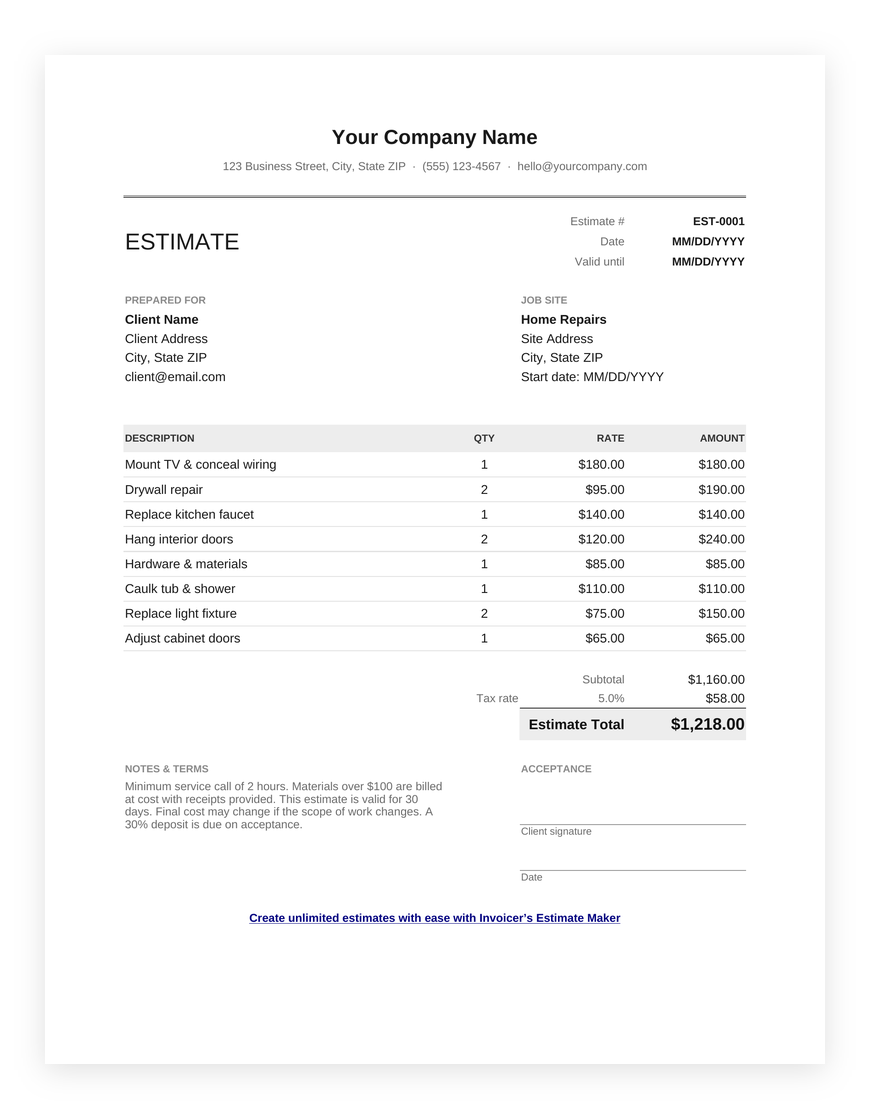
Made for smaller repairs, maintenance work, and odd jobs. List each task separately with its price, then add any project notes and give the client a place to sign off on the estimate.
Skip the template. Create, send, and track estimates with Invoicer.
Create Your Estimate
Easy and intuitive estimate maker.

Clear and simple process for your clients to approve.

Easily customize with your brand and colors.
Here is everything you need to know about Google Sheets estimate templates. Who they are for, how they work, what to put in them, and pros and cons of a Google Sheets estimate template.
A Google Sheets estimate template is a structured spreadsheet that helps businesses create estimates with automated calculations. It’s a cloud-based alternative to Excel, allowing for real-time collaboration while still offering built-in formulas to track pricing, taxes, and totals.
Starting from a template is usually faster than building your own spreadsheet because the basic layout and calculations are already in place.
A Google Sheets estimate template uses a pre-formatted spreadsheet with sections for client information, services, materials, labor, taxes, discounts, and estimated costs. Built-in formulas automatically calculate totals as you enter or update the information.
Because the estimate is stored in Google Sheets, you can access it from different devices, collaborate with team members in real time, share it with clients, or export the finished estimate as a PDF.
Use separate sections for your business information, client details, project description, and cost breakdown. Tables can help keep descriptions, quantities, rates, and totals aligned and easy to read.
Customize the template by adding your logo, brand colors, preferred fonts, and contact details. You can also rename sections, add or remove fields, and adjust the layout depending on the type of work you provide.
Before sending the estimate, review it in print or PDF view to make sure the formatting is consistent and that tables, totals, and text appear correctly.
There are three main ways to create a Google Sheets estimate template: building a custom sheet from scratch (Time-consuming), using a premade template (Faster), or using an estimate generator (Fastest and most efficient).
A Google Sheets estimate template simplifies cost estimation by automating calculations while allowing teams to edit and review estimates in real-time. If you need a collaborative, cloud-based solution for estimating, Google Sheets is a great choice.
Start by opening the template in Google Sheets and making your own copy. Then, add your business and client information, then enter the services, materials, quantities, rates, taxes, and discounts that apply to the job.
Check that the formulas calculate the subtotal and estimated total correctly, then customize the colors or add your logo if needed.
Once the estimate is complete, you can share the Google Sheets file with your client or download it as a PDF before sending it.
To keep the estimate organized, use separate columns for descriptions, unit prices, quantities, and totals. Apply bold headers, gridlines, and color-coding to make it easier to read. You can also use conditional formatting to highlight missing information, expired estimates, or unusually high costs.
A Google Sheets estimate template can be customized to match your business and the type of work you provide. Start by adding your company name, logo, contact details, and preferred colors. You can also rename columns, add or remove fields, and adjust the layout to include the information your clients need.
Update the formulas if you need to calculate taxes, discounts, labor, materials, or other costs automatically. You can also change fonts, borders, and number formats to make the estimate easier to read and more consistent with your branding.
Before sending the estimate, check that all formulas are working correctly and that the final total updates when quantities or prices change.
Google Sheets estimate templates work well for simple estimates, but they can become less practical as your workload grows. If you create estimates frequently, manage many clients, or need to track approvals and estimate statuses, handling everything manually in separate spreadsheets can take extra time.
Google Sheets and Excel both work well for creating estimates with formulas and automatic calculations. Google Sheets is particularly useful when you need cloud access, easy sharing, or real-time collaboration. Excel can be a better choice when you prefer working offline or need more advanced spreadsheet features.
If you prefer Microsoft Excel, you can also use our free Excel estimate templates.
This template is best for:
Google Sheets estimate templates are a great starting point. However, for a quicker and more automated solution, the Estimate Maker from Invoicer.ai provides built-in calculations, easy adjustments, professional estimates, and time-saving templates. Plus, you can try it free for 14 days!

