Invoicer.ai now integrates with QuickBooks Online and Xero, so you can manage your estimates, invoices, payments, and expenses in Invoicer.ai while keeping the corresponding information in your accounting software up to date.
This means you don't have to enter the same information separately in Invoicer.ai and your accounting software. Below, we'll explain how the integration works, what can and can't sync, how to set it up, and what you should keep in mind before you use it.
The integration works using a one-way sync, with information moving from Invoicer.ai to QuickBooks Online or Xero. However, it doesn't import your accounting transactions back into Invoicer.ai, meaning Invoicer.ai should be the place where you make changes to records that are being synced.
Here's a quick overview of what can and can't sync from Invoicer.ai to QuickBooks Online or Xero.
For expenses, there are a few differences depending on which accounting platform you use. In QuickBooks Online, paid expenses are recorded as purchases, while unpaid expenses are recorded as bills. In Xero, expenses are recorded as bills, with the payment recorded as well if the expense has already been paid.
For invoice items, QuickBooks Online uses an Invoicer.ai Sales item, while Xero posts invoice lines to the selected sales account. The descriptions and amounts on each invoice line are still transferred from Invoicer.ai.
1. Open Settings in Invoicer.ai and click the Integrations tab:
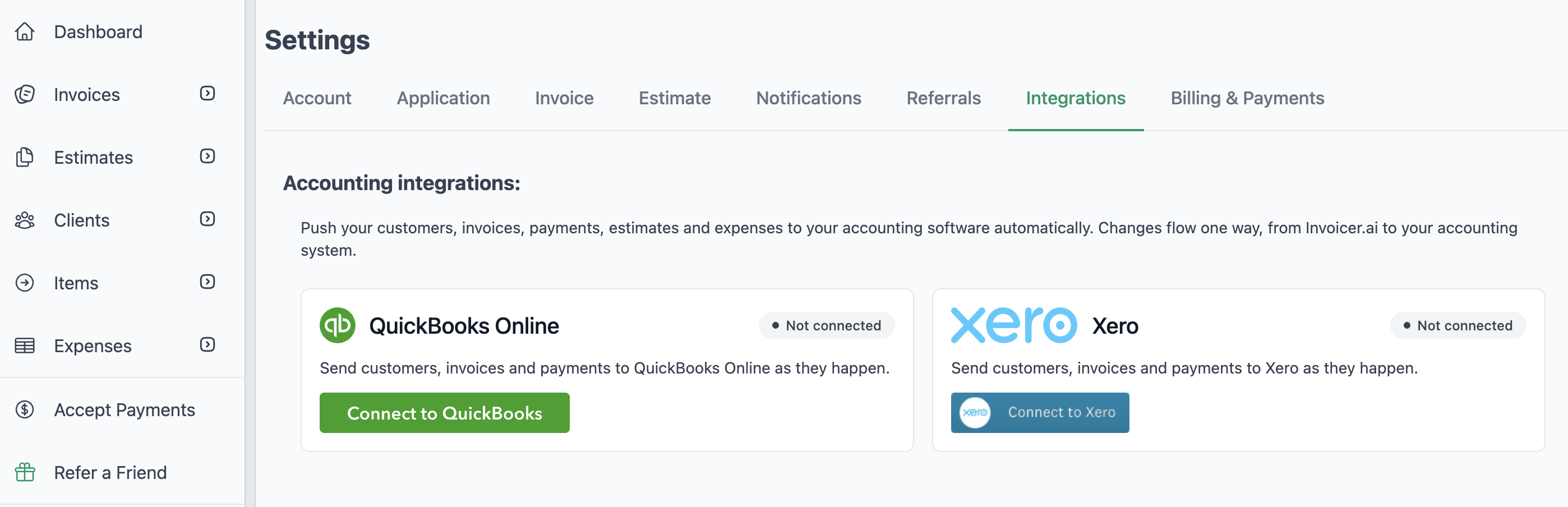
2. Find Accounting Integrations and select Connect for QuickBooks Online or Xero, depending on which platform you want to connect.
3. Sign in to your accounting account and approve the connection. If you have more than one Xero organization, choose the one you want to connect to Invoicer.ai.
4. When you return to Invoicer.ai, confirm that the integration shows as connected.
Keep in mind that accounting integrations are currently available on the Pro and Advanced plans. The account owner or a team member with permission to edit settings can connect an integration or change its settings if needed.
Before you sync, you should decide where these records will be posted in your accounting system. The available account and tax options come from the connected QuickBooks Online or Xero account, depending on which one you use.
For example, you might have to choose the sales or income account used for invoice revenue, the bank account used for payments, and the appropriate expense accounts. The taxes you use in Invoicer.ai will also have to be matched to the appropriate tax rates or codes in the accounting software you connected.
If you have a document that uses a tax that hasn't been mapped, it won't sync until you complete the mapping. If you're not sure which tax settings or accounting accounts you should use, talk to your bookkeeper or accountant before you sync anything.
Each accounting connection has its own settings, so you can turn syncing on or off and separately control what you want to sync, including invoices, payments, estimates, and expenses.
Keep in mind that if you turn a sync option off, this won't create a backlog that automatically appears later on. So, for example, if you make changes or create new records after you disable that option, they will be skipped.
If you connect QuickBooks Online or Xero to Invoicer.ai, the connection will only apply to new activity from the moment you connect it, so any past records won't be pushed automatically.
If you do select Sync Now, Invoicer.ai can queue eligible estimates, invoices, payments, and expenses from the previous 12 months, as long as they are not already in the connected accounting software.
You can also use Sync Now after you turn a sync option back on or after you correct a failed sync.
Syncing happens in the background, so you might briefly see a record showing that it's still syncing. In Invoicer.ai, you'll see a sync status beside documents that are being synced.
There's also a Sync Activity section in the integration settings that shows any records that could not be synced and why they failed.
Once you correct the issue, you can use Sync Now to try again instead of waiting for the next background sync.
If you edit a synced document directly in Xero or QuickBooks Online, Invoicer.ai stops pushing changes to that particular document so the edit you made in your accounting software isn't overwritten. You can then decide if you want to keep the accounting version or overwrite it with the Invoicer.ai version and resume syncing.
Once a payment has been recorded on an invoice in Invoicer.ai, any future edits you make to it will not be pushed to QuickBooks Online or Xero.
If you need to adjust or fix anything on the invoice after that, you'll have to make the change yourself in your accounting software. However, refunds and new payments can still sync.
If you delete an invoice in Invoicer.ai, it will void the corresponding invoice in your connected accounting software.
If you delete an expense or estimate, it will be removed. If you remove a client, that customer will be made inactive in QuickBooks Online or archived in Xero instead of being permanently deleted there.
Any records you create or change while the option is off are skipped, and they won't be added automatically when you turn it back on. If you want those records included, use Sync Now.
QuickBooks Online and Xero authorizations can sometimes expire. If that happens, Invoicer.ai will show that the connection needs to be reconnected, and syncing will pause until access is restored.
You can disconnect the integration yourself from the integration settings. This will stop future syncing, but any records that have already been pushed will remain in the accounting software.
If you already use Xero or QuickBooks Online for accounting but prefer to create and manage your invoices, estimates, payments, and expenses in Invoicer.ai, the integration gives you a way to keep the two connected without entering the same information twice.
Just remember that the sync works from Invoicer.ai to your accounting software, so Invoicer.ai should be where you manage the records you want to keep synced.
For the exact setup options and troubleshooting information, see the Invoicer.ai Help Center guide.
Try Invoicer.ai free for 14 days. No credit card required.