-4.png)
Emailing an invoice might take a few seconds, but the email containing the invoice is equally as important. Miss one detail, and there is a chance the client might not see your email at all.
Below, we'll discuss how to send an invoice by email, what you should include in the message, and email templates you can use for common situations.
The email should always make the invoice easy to identify and act on. Otherwise, you risk having your invoice get lost in the client's inbox.
Make sure the email containing your invoice includes the finished invoice itself, preferably in PDF form, as well as the client/customer name, invoice number, a short description of the work, amount due, due date, payment instructions or payment link where applicable, and your business/contact details.
Firstly, create your invoice. You can create one from scratch or use our ready-made invoice templates for 50+ industries. You can also create an invoice with Invoicer.ai and then send it to your client, all inside the software.
Once you've created your invoice, attach it to the email and add a subject line with something like:
Invoice #1042 from [the name of your company] Invoice for [project or service] - Due [date]
You can attach an invoice as a PDF or send a link. It all depends on how you usually invoice and how your client prefers to receive documents.
A PDF might be convenient because it gives you and the client a copy you can instantly download and keep. It also makes it easier for you to find the invoice later if you need it for your records.
A link can be more convenient when you create an invoice through invoicing software, especially if the client can view the final version online without downloading a PDF.
Ultimately, the choice is yours. There’s no right or wrong way to go about this. You can also include both: a PDF for your and your client's records and an invoice link for easy access.
Then add a short email body explaining the purpose of the email and what the client needs to do to pay. For example, tell them that they can find the invoice in the attachment. The explanation shouldn't be long. Keep it short and straight to the point.
Add the client's email as the recipient, and add anyone else in CC if needed. Also, make sure you're sending the invoice to the right person. Sometimes the person who hired you isn't the same person paying your invoice, so double-check that first.
Double-check everything before sending. Make sure the email has a subject line, a short message, an invoice link and/or PDF, and the correct recipients selected.
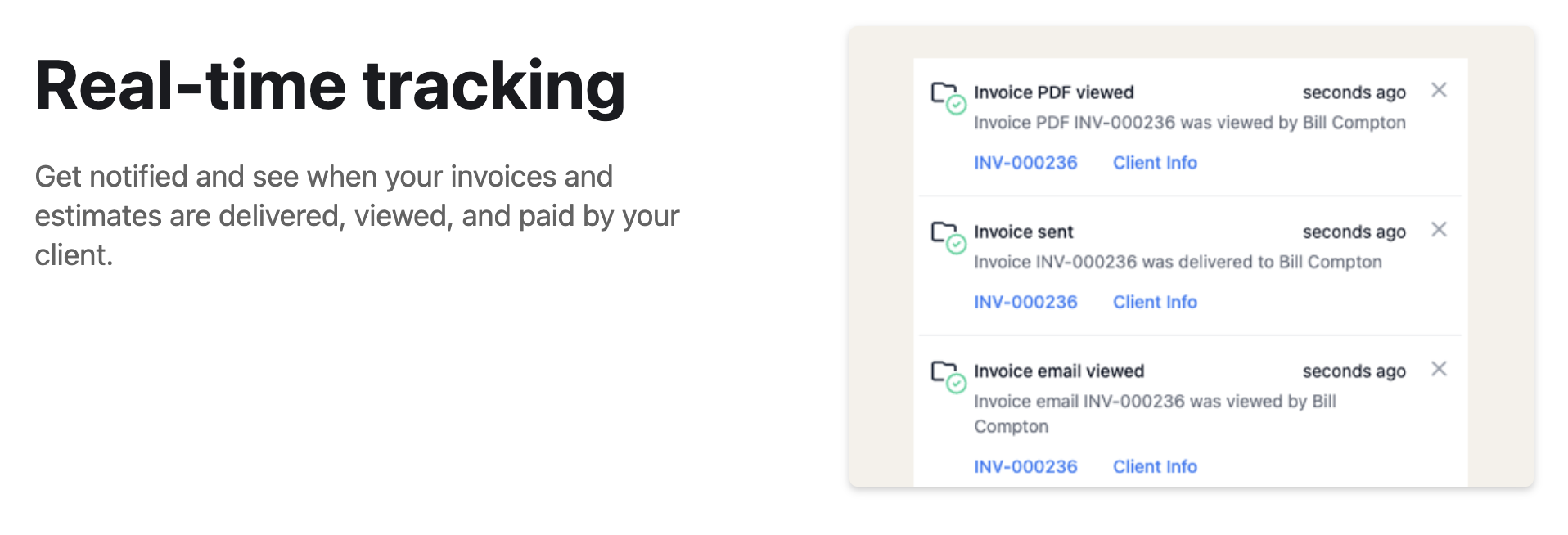
Then, send the invoice and keep track of it. Unfortunately, you can't check whether the client viewed your email or opened your invoice when sending it manually. If that’s important to you, you might benefit from Invoicer.ai’s real-time tracking feature:
The standard version for sending an invoice upon project completion.
Best for: most freelancers, contractors, and service businesses.
Subject: Invoice # from [your business name]
Hi [Name],
Please find attached invoice #for [your project or service].
The total amount due is [$], with payment due by [Date].
You can find the payment information on the invoice. Please let me know if you have any questions.
Thank you,
[Name]
[Your business name]
A slightly more detailed version for sending an invoice to a client for the first time.
Best for: new clients who might not be familiar with your billing or payment process.
Subject: Invoice # for [project or service]
Hi [Name],
Thank you for working with me/us. I've attached invoice # for [your project or service].
The total amount due is [$], with payment due by [Date].
You can find the payment instructions and full details on the invoice. Please let me/us know if you have any questions.
Thank you,
[Name]
[Business Name]
A shorter version for clients who are already familiar with the process.
Best for: regular or long-term clients.
Subject: Invoice # from [company name]
Hi [Name],
I've attached invoice # for [service or project].
The total amount is [$], due by [Date].
As usual, you can find the payment details on the invoice. Please let me know if you have any questions.
Thank you,
[Name]
[Company Name]
Use this when requesting a deposit before starting a project or providing a service.
Best for: freelancers, contractors, and service businesses that require an upfront payment.
Subject: Deposit Invoice # for [project or service]
Hi [Name],
I've attached the deposit invoice for [project or service].
The deposit amount is [$], with payment due by [Date].
Once the deposit is received, briefly explain the next step, such as "I'll begin work on the project" or "we can schedule the work".
Please let me know if you have any questions.
Thank you,
[Name]
[Business Name]
A simple email for services that are billed on a regular schedule.
Best for: retainers, monthly services, maintenance work, and other recurring client relationships.
Subject: [Month] Invoice # from [Your company name]
Hi [Name],
I've attached invoice # for [Month or Billing Period], covering [service].
The total amount due is [$], with payment due by [Date].
You can find the usual payment details on the invoice. Please let me know if you have any questions.
Thank you,
[Name]
[Business Name]
Use this when a project is complete and you're sending the client their final invoice.
Best for: one-time projects or projects with multiple payments or a deposit.
Subject: Final Invoice # for [Project Name]
Hi [Name],
Now that we've completed [Project Name], I've attached the final invoice for it.
The remaining balance is [$], with payment due by [Date].
Thank you for working with me/us on this project. Please let me know if you have any questions about the invoice.
Thank you,
[Name]
[Business Name]
A polite follow-up for an invoice that hasn't been paid by its due date.
Best for: following up with clients shortly after an invoice becomes overdue.
Subject: Follow-Up: Invoice # Past Due
Hi [Name],
I'm following up on invoice # for [$], which was due on [Due Date].
I wanted to check whether you've received the invoice and if you have an update on the payment status.
I've attached the invoice again for convenience. Please let me know if you need anything from me to process the payment.
Thank you,
[Name]
[Business Name]
Still didn’t get paid? Read about what to do when an invoice becomes overdue.
Your email subject line should make it immediately clear what the email is about. Clients often receive tons of emails every day, so avoid putting only “Payment” or “Attachment” in the subject line.
Your invoice email subject line should include the word “invoice,” along with identifying information such as your business or personal name, the service you provided, the invoice number, or the due date. This format will make it easier for you and the client to find the email later if needed.
Here are a few examples you can pick from:
You can also use Invoicer.ai to create professional invoices and send them by email or through the software.
Watch this short video on how to quickly create an invoice with Invoicer.ai:
You can make an invoice yourself and send it as a regular email attachment, but this can take up a lot of your time, especially when you're invoicing frequently. Using invoicing software keeps the invoicing process in one place and reduces the amount of manual work involved.
Want to try it yourself? Invoicer.ai offers a free 14-day trial, so you can create and send your first invoice and see if it works for your business. Create and send your invoice with Invoicer.ai today.